Katie Ann Wilson
  • Home
  • Digital Portfolio
  • Talents
  • Education
  • Connect
  • Trainings
  • Resources
  • #TechieEdu

Create a Green-Screen Project

3/31/2015

0 Comments

 
Picture
Take the Green-Screen Challenge - #TechieEdu! 

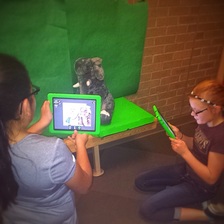
Have you watched the weather report and wonder how in the heck did they get that map or video to play behind them.  You and your students can create projects just like the weather man broadcasts the weather report with one simple iPad tool.


Green-Screen Project Ideas:
  • Teacher in-Residence - Teachers could pre-record a lesson for the substitute so that class could go on as usual. Once shared with students, they could return to the lesson again and again as needed
  • Historical Role-Play - Teachers could have students re-enact different historical events either using the portable green screen with props or the larger green screen with themselves.
  • Historical Reporting - Students could use the green screen to create a journalistic approach to report important things that have happened in the past.
  • Click Here for more ideas.


The Challenge
  • The Challenge via the Podcast on Remarkable Chatter
  • Review the presentation - Creating Amazing Green-Screen Projects.
  • Download the Veescope Full Version app
  • Play with the app.  You do not need a green-screen to work the app, all you need is a blank wall, whiteboard, door, and etc... 
  • Create a 1 minute green-screen project.
  • Upload your project to YouTube, SchoolTube, Vimeo, and etc... 
  • Find the SHAREABLE Link.
  • Tweet out your Green-Screen project using the hashtag #TechieEdu.
  • Share your project idea on the Green-Screen Idea board.
  • Claim your badge. 


Resources:

0 Comments

Take the AR Challenge - 

3/4/2015

0 Comments

 
Picture
Take the AR Challenge - #TechieEdu.....Augmented reality is a technology that superimposes a computer-generated image on a user's view of the real world, thus providing a composite view.  Augmented reality is a tool to engage students.  There are several pre-made augmented triggers that you can use or you can create special augmented triggers of your own.  When lessons are engaging learning takes place.

Some AR Ideas:
  • Use a Augmented Color page as a writing prompt, to enhance a writing project or to teach revision skills. 
  • Use the DOT Day color sheet and have kids design interactive LOGOS. 
  • Elements 4D has Lessons and Printable Blocks. 


History Projects On the Scene Reports Interviews with Historical Characters Audio Clips Interactive Maps.


The Challenge:

Use an augmented trigger in one of your lessons.  It could be an AR coloring sheet from colAR, Chromville, or even Color Alive. You could even use the NASR 3D trigger, Elements 4D blocks, or even Cybercase Shape Quest.

  • Take pictures of your students using the AR trigger. 
  • Post your project on the AR Project Ideas board. http://padlet.com/tigerlovessmoke/arprojects 
    a. What was your project? 
    b. How did you use the AR trigger? 
    c. What AR experience did your trigger have? (video, music, 3D object, & etc...) 
    d. Did your AR trigger have more than one AR experience? 
    e. What was the reaction from your students? 
  • Share your AR experience with other educators. 
  • Tweet out your AR Project. Use the hashtag #TechieEdu

Resources:
  • The AR - Podcast
  • My AR Resource Page
  • The AR Idea Board
  • The AR Challenge 
  • Get the AR Rock Star Badge 
Picture
0 Comments

GETTING ORGANIZED WITH SYMBALOO....

2/7/2015

0 Comments

 
Picture
There are many tools that can help you stay organized. One tool I really like to use to organize and share resources with my students is Symbaloo. Symbaloo is an online social bookmarking tool. There is a education version and a regular version. I have been using the regular version for at least 4 years. I like that it represents a board. For my kids that is very visual and easy to use rather than just a list on a page.


Symbaloo is really easy to use.  If you can copy and paste you can create tiles on a Symbaloo board.  So for my second challenge I would like you to create a Symbaloo board of your choice.  If you do not have an account you will need to create one.  It could be a SymbalooEdu account or a regular account. 

Listen to my podcast on Rembarkable Chatter and learn more about Symbaloo and how you can use it to get organized.


Once you have created your account you will create your 1st Symbaloo board. On this board you will be saving websites or resources of your choice. The boards I share with students are links to their work. For example my 8th grade computer apps classes create shareable technology flashcards. I collect these flashcards and pin (save) them to a Symbaloo board. I do this so that all of their flashcards are all in one place and everyone can have access to them. With my Symbaloo board I can embed the board directly on my website, Edmodo group, or share the link.

After have created your 1st Symbaloo board you will need to share it with me.  Use the hashtag #TechieEdu and tweet out your webmix / Symbaloo Board.

I also encourage you to visit the Symbaloo Gallary.  You may find a board that is already built that will fit your needs.

Some Symbaloo Board Ideas:
  • Guided access in a computer lab. - Make the board the computer lab's home screen.
  • Stored resources for a certain topic. - Save all of the video clips, web resources, Google Docs, and etc... for a topic for example Ancient Egypt on one board. 
  • A Conference Board - Create a board and save all of the online content from a conference to it.
  • A Project Board - Save all the resources for a certain project to a board.
  • A Showcase Board - Save student work to a board and show it off during a parent night.


Resources: 
  • Get Organized with Symbaloo Podcast
  • The Challenge
  • Get the Badge
  • My Symbaloo Profile
  • Symbaloo
  • SymbalooEdu
  • Teaching Tech to K-2nd Grades 
  • Teaching Tech to 3rd -4th Grades


Below is a video clip explaining Symbaloo and how to create a board:

0 Comments

Twitter Challenge

1/31/2015

0 Comments

 
Picture
I am excited to announce that I now have a podcast. My goal for this podcast is to share some tips, tricks, apps, anything and everything related to the topic of tech ed. Integrating technology into the classroom can be a little overwhelming. The 1st question most people have is where do you even begin? My answer is to start simple and start with 1 tool. As part of my Diary of a Techie Chick - the Podcast I will offer a new challenge to help you learn about the variety of  tools you can add to your toolbox. I will be using the hashtag #TechieEdu to share the challenges.

You can find my podcast on the Remarkable Chatter, the Essdack Broadcasting Network website. You can play it, download it, or even subscribe to it in iTunes.  My goal is to have a new podcast and challenge ever other week, so keep tuned.

I've created an interactive document using Lucidpress to explain the challenge.  You can access the Twitter Challenge by clicking on the link using your PC (personal computer), smartphone, or tablet.  You can also listen to the challenge via my podcast.  Once you have completed the challenge claim the badge.  I will have a new badge for each challenge.  After you have claimed your badge, show it off.  Let people know that you rocked the challenge and have earned a badge to prove it.


1st #TechieEdu Challenge:
  • 1st Podcast
  • Twitter Challenge 
  • Get Your Badge

0 Comments
Forward>>

    Challenges from the techie Chick

    Integrating technology into the classroom can be a little overwhelming.  As part of my podcast with Remarkable Chatter I am designing some challenges to help simplify technology integration to help ease the overwhelming feeling. 

    I will be using the HashTag #TechieEdu for these challenges.

    Archives

    July 2015
    June 2015
    April 2015
    March 2015
    February 2015
    January 2015

    RSS Feed

"Technology doesn't make us better, it opens the door to better ourselves." ~ Katie Ann Wilson